Guide
How to use Plainboard
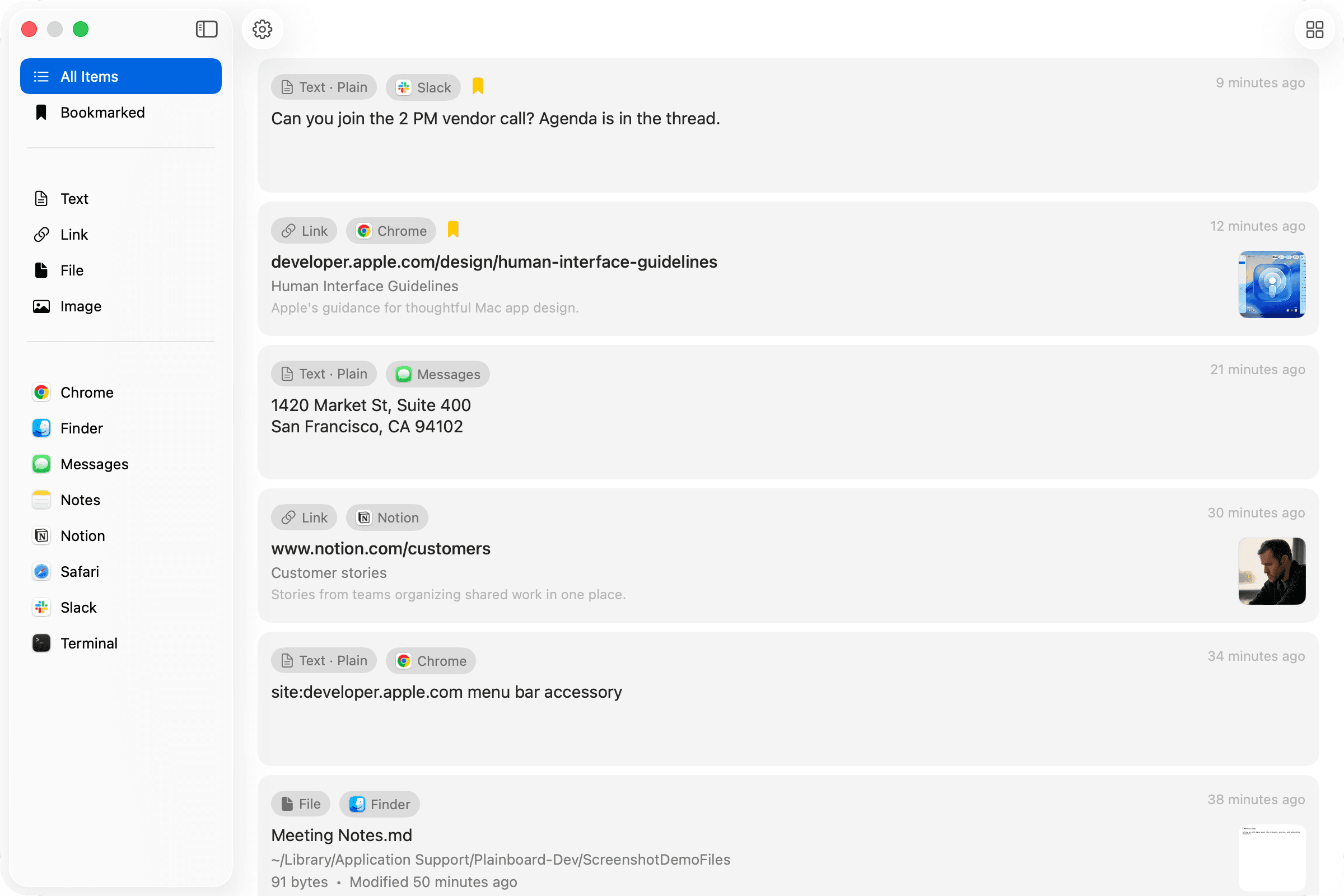
Open from the menu bar and find the items you copied.
Quick start
Three steps
- 1
Menu bar
Open Plainboard
Click the Plainboard icon in the macOS menu bar to open your clipboard history.
- 2
Anywhere
Copy as usual
Copy text, links, files, or images while you work. Plainboard saves them on your Mac.
- 3
Reuse
Reuse the items you copied
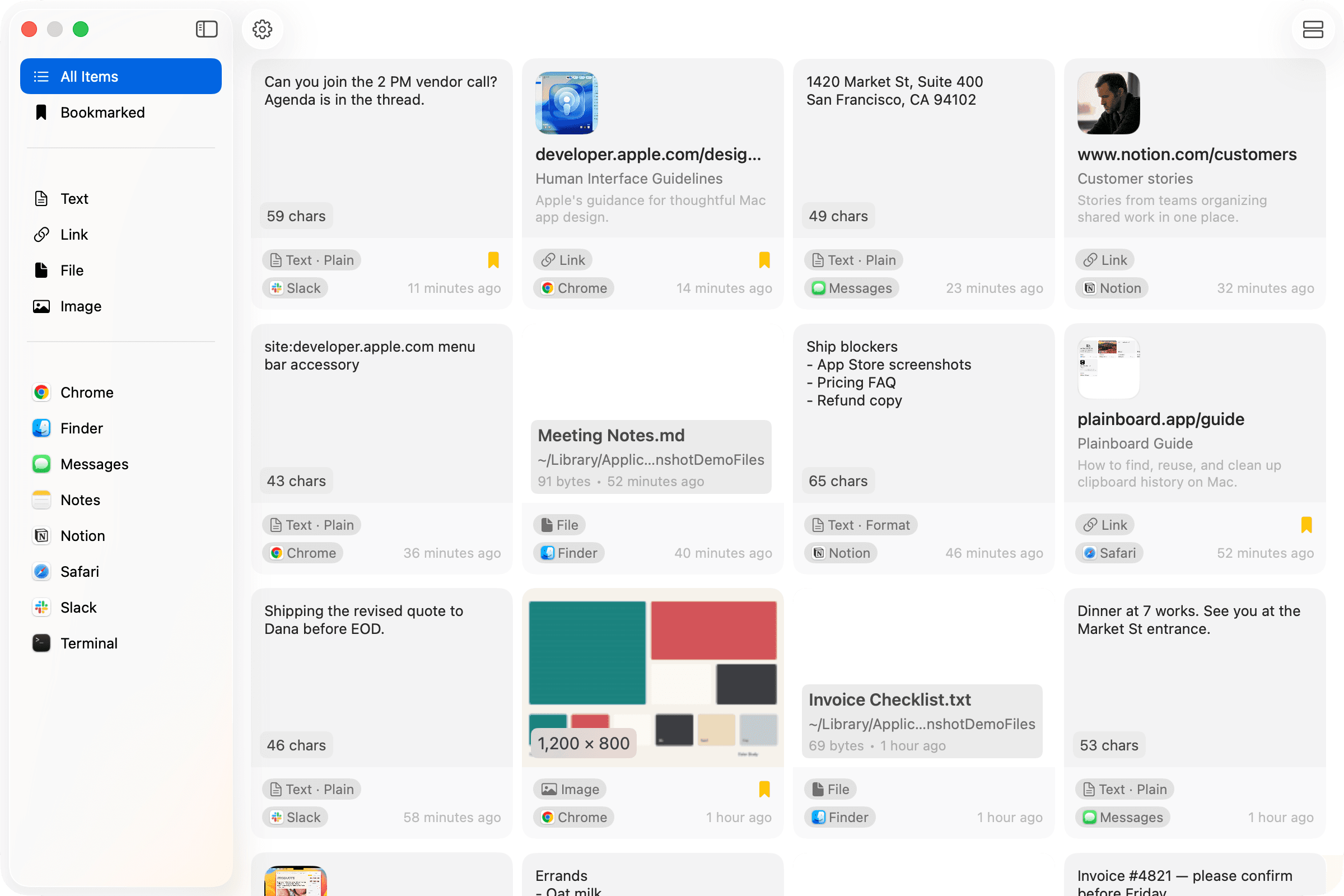
Browse by type, app, or bookmark, then copy any item.
Everyday use
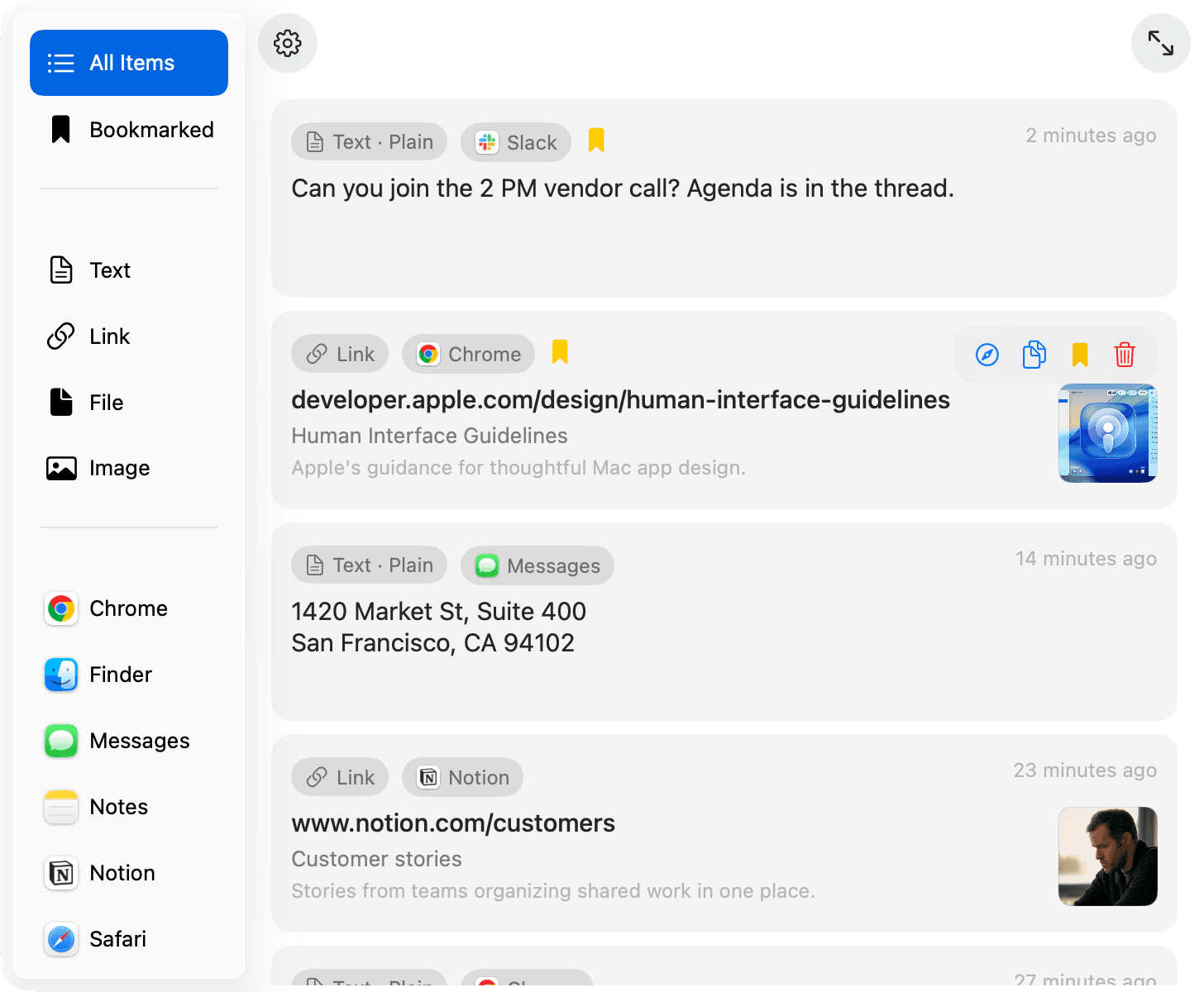
Filters, bookmarks, and settings
- Filter by type
- Text, Link, File, and Image.
- Filter by source app
- See clips from apps like Chrome, Finder, or Notes.
- Bookmark items
- Keep important clips from retention cleanup.
- Adjust settings
- Exclude apps, skip sensitive items, and set how long history is kept.